
Master your family schedule with these Google Calendar tips. From color-coding to shared tasks, discover how to keep your household running smoothly.
In today’s fast-paced world, managing a family schedule is no small feat. With the constant juggle of work, school, extracurricular activities, and household chores.
It often feels like we’re running on a hamster wheel—constantly spinning but never truly moving forward. I know the feeling all too well.
How to Manage Your Family Schedule with Google Calendar
Location Integration: No More “Where Is It?” Texts
How many times have you been halfway to a birthday party only to realize you don’t have the address?
The Benefit: On the day of the event, anyone with access to the calendar can simply tap the location to open Google Maps.
As a parent, I can relate to the challenge of coordinating everyone’s activities while maintaining some semblance of order. But what if I told you there’s a way to manage all these moving parts with calm and efficiency? Enter Google Calendar.
Google Calendar isn’t just for scheduling meetings or work tasks. It’s a powerful tool that can help you streamline your family’s schedule, create shared tasks, and even set up automatic reminders.
If you’re tired of using mental notes or frantic texts to manage your family’s chaotic schedule, you’re in the right place. Let’s dive in and see how Google Calendar can transform the way your family stays organized.
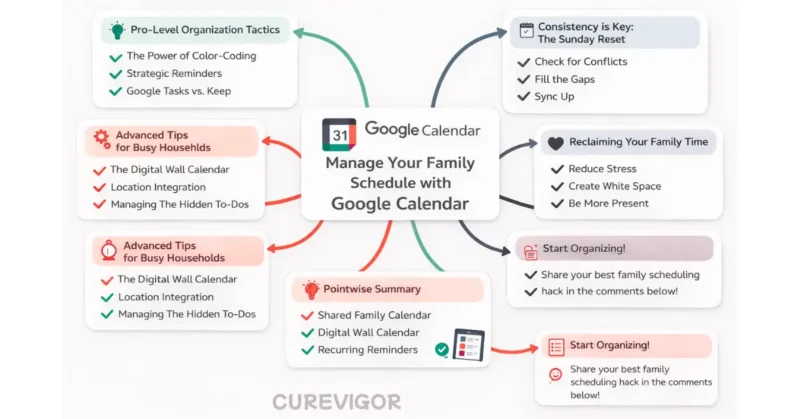
The Family Sync: Quick Summary
Why switch? Stop carrying the “mental load” and create a single source of truth for your household to reduce stress and “who’s doing what?” arguments.
Top 3 Tactics:
- The Layer Strategy: Create separate calendars for Meals, Kids’ Sports, and School Holidays to avoid a cluttered view.
- Visual Cues: Assign one specific color to each family member for instant recognition.
- The Sunday Reset: Spend 15 minutes every Sunday syncing with your partner to prep for the week ahead.
Pro Hack: Use the Location field in every event to trigger automatic “Time to Leave” alerts based on real-time traffic.
Beyond the 9-to-5: Why Your Family Needs a Powerful Digital Hub
Most of us treat our work calendars with a level of reverence. If a meeting is on the calendar, we show up. If a deadline is logged, we meet it. But when it comes to our home lives, we often rely on what sociologists call “The Mental Load.”
The mental load is that invisible, exhausting running list of “to-dos” that parents carry: Did I sign the permission slip?
s it early dismissal on Thursday? When was the last time the dog went to the vet? Carrying this in your head isn’t just stressful; it’s a recipe for burnout.
By transitioning your family life into a Digital Hub, you aren’t just adding events to an app; you are externalizing that mental load.
The Power of a “Single Source of Truth”
When your family uses Google Calendar as a “Single Source of Truth,” you eliminate the “I thought you knew” arguments.
- For Practices: No more digging through buried emails from the coach.
- For Birthdays: No more frantic, last-minute runs to the store because a party slipped your mind.
- For Chores: Expectations move from “nagging” to “scheduled.”
A digital hub ensures that information lives in the cloud, not just in one exhausted parent’s brain. It levels the playing field, allowing everyone in the house to take ownership of the family’s time.
The Foundation: Setting Up Your Family Ecosystem
To make Google Calendar work for a family, you have to move past the “one big calendar” approach. If you put everything—from work meetings to trash day to soccer—on a single calendar, it becomes a visual nightmare. Instead, we use an ecosystem approach.
The “Layer” Strategy: Creating Separate Calendars
Think of your family organization like a transparent map. Each category of your life gets its own “layer” that you can toggle on or off. This keeps your view clean and focused.
I recommend creating these specific calendars within your Google account:
- Kids’ Sports & Activities: For the games, practices, and rehearsals that move every week.
- Meal Planning: A dedicated layer for “What’s for dinner?” so you can stop answering that question four times a day.
- School Holidays: Sync the district calendar here so you’re never surprised by a “Professional Development Day.”
- Home Maintenance: Recurring reminders for air filters, lawn care, and trash pickup.
Permissions & Sharing: Collaboration Without Chaos
The biggest mistake people make is sharing their entire Google account password. Don’t do that. Instead, use Google’s built-in sharing permissions to invite your “team” while maintaining control.
- For Partners: Share your “Family” calendars with “Make changes and manage sharing” permissions. This allows both of you to be equal “admins” of the household.
- For Older Kids/Teens: Give them “See all event details” or “Make changes to events” permissions for their specific calendar. This teaches them time management without letting them accidentally delete their work appointments.
- For Grandparents or Nannies: You can share a “read-only” version of the Kids’ Sports calendar so they always know where the Saturday game is without being able to move it.
Quick Tip for the “Ecosystem”: When creating these calendars, use a logical naming convention, such as “Family – Meals” or “Family – Sports.” This keeps them grouped together in your sidebar for easy management.
Pro-Level Organization Tactics
Setting up a calendar is easy; making it readable and functional is where the magic happens. If your calendar looks like a solid wall of blue blocks, you aren’t organized—you’re overwhelmed. Use these three tactics to turn that wall of data into a streamlined dashboard.
When it comes to organizing your family’s schedule, setting up a calendar is the easy part. The real challenge is making it functional and easy to read.
A calendar stuffed with blue blocks of appointments is overwhelming and counterproductive. To turn your Google Calendar into an effective, visually appealing tool, use these advanced organization tactics.
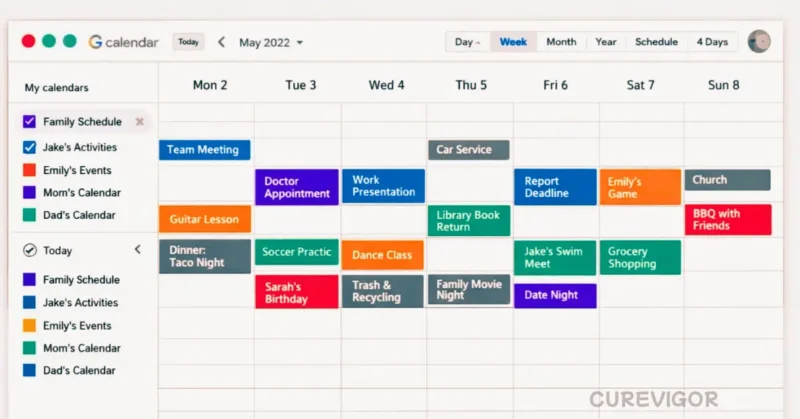
The Power of Color-Coding: The “At-a-Glance” Test
The key to a functional family calendar is quick readability. In under three seconds, you should be able to understand who needs to be where and when. The best way to do this is through color-coding.
When everyone in the family has a designated color, it becomes instantly clear who is doing what.
Individual Colors
Assign each family member a color—Mom could be “Grape,” Dad “Peacock,” and the kids could have their own distinct shades like “Tangerine” or “Basil.”
With this color scheme, you’ll be able to glance at your calendar and instantly know who’s responsible for each task or event.
The “Logistics” Color
Use a high-contrast color for shared family events. For example, you could assign “Graphite” to things that affect everyone—such as school closures, family vacations, or car maintenance. This ensures that these high-priority events stand out.
Pro Tip: Consistency Across Devices
The key to a smooth family calendar experience is consistency. If your son’s soccer practice is marked in “Tangerine” on your phone, make sure it’s the same color on your spouse’s phone, your tablet, or your computer. This consistency prevents confusion.
Strategic Reminders: Beating the “Last-Minute” Panic
Many people set a reminder for “at the time of the event,” but for families, this often proves too late.
Think about it—by the time your reminder pops up that it’s time to leave for soccer practice, your child is already running around the house looking for their cleats.
To keep things running smoothly, use a two-tiered reminder system.
The “Preparation” Alert
Set a reminder for 24 hours before the event. This serves as your prompt to gather the necessary items, like soccer cleats, a snack, or a gift for a birthday party.
You can also use this time to double-check whether you need to prepare any materials in advance (e.g., a science project or a permission slip).
The “Departure” Alert
Set a second reminder 15 to 30 minutes before you need to leave. This buffer time accounts for last-minute changes and ensures you and your family aren’t scrambling.
Google Tasks vs. Keep: Sorting Your Shared Lists
Google Calendar integrates with both Google Tasks and Google Keep. However, many families aren’t using them to their full potential. Here’s how to split the workload between the two tools for maximum efficiency.
Use Tasks for Deadlines
If you have tasks that come with a specific deadline—like paying the field trip fee, scheduling a doctor’s appointment, or signing up for a class—add these to Google Tasks. Once you have finished each task, mark it as completed in your calendar.
Use Google Keep for Ongoing Lists
For ongoing checklists (like grocery lists, packing lists, or a summer bucket list), use Google Keep.
This tool lets you create lists and pin them to your calendar’s side panel. Without taking up too much of your calendar, they can serve as a continuous visual reminder.
A Little Gift for Readers: The “Travel Time” Hack
When creating an event, don’t forget to include the location. Google Calendar not only provides a map link but also sends a “Time to leave” notification based on traffic conditions.
This feature is invaluable when you’re juggling multiple activities or need to get from one place to another quickly.
Advanced Tips for Busy Households
Now that you’ve got the basics down, let’s move on to some more advanced Google Calendar tricks.
These tips will help automate your life and keep your family schedule running smoothly without requiring constant manual input.
The “Digital Wall Calendar”: Centralizing Information
One of the most common scheduling pitfalls for busy families is the “hidden schedule”—where one person knows what’s happening, but the rest of the house is in the dark. To avoid this confusion, try setting up a “Digital Wall Calendar.”
The Hack:
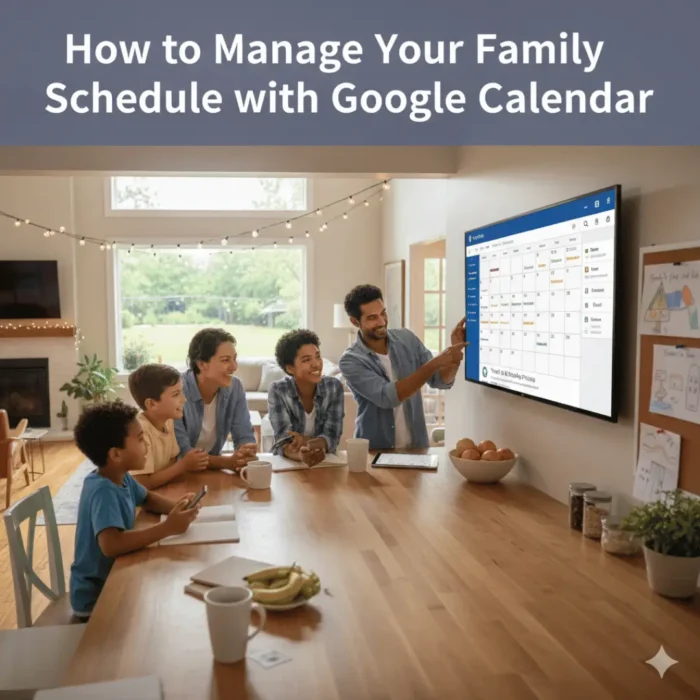
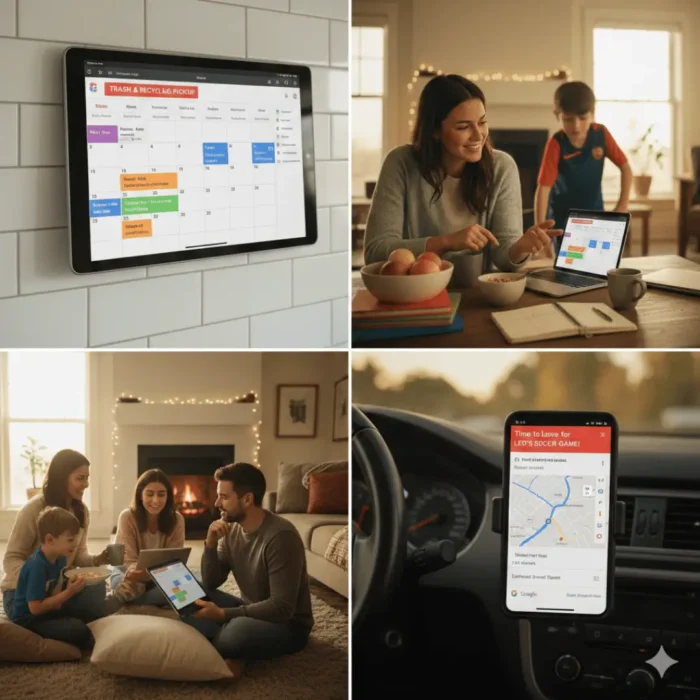
Repurpose an old iPad or buy an inexpensive tablet to act as a dedicated family calendar. Mount it in the kitchen or entryway where everyone can easily see it. Set the display to “Always On” and keep it on the “Weekly” or “Schedule” view.
The Setup:
This simple setup lets your kids see important events without constantly asking you. Whether it’s “Library Book Return Day” or a reminder to pack their gym shoes, everyone is on the same page.
Location Integration: No More “Where Is It?” Texts
How many times have you found yourself halfway to a birthday party only to realize you don’t have the address? It happens to all of us. But with Google Calendar, there’s a simple solution.
The Pro Move:
Always add the event’s location to the “Location” field when creating the event. Not only will this add a clickable Google Maps link, but it will also provide automatic traffic alerts when it’s time to leave, based on your current location.
The Benefit:
With location information in your calendar, anyone with access can tap the address to open Google Maps. This eliminates the need for “Can you text me the address?” and ensures everyone is on time.
Managing “The Hidden To-Dos” with Recurring Events
There are dozens of small household tasks that keep everything running smoothly, but are easy to forget. To avoid this, use Google Calendar’s recurring event feature to automate these “hidden to-dos.”
The “Library Loop”:
If your kids need to return library books every two weeks, set up a recurring event. This will automatically remind you, so you don’t need to rely on memory.
The Mental Benefit:
By setting these recurring events, you free up mental space for more important tasks. These events run automatically in the background, giving you one less thing to worry about.
Consistency is Key: The Sunday Reset
Even with the best digital tools, staying organized requires consistent effort. That’s why I recommend adopting a Sunday Reset routine.
Spend 10-15 minutes. Each Sunday
Every Sunday evening, set aside 10–15 minutes to go over the upcoming week. Sit down with your partner, or, if you’re managing the calendar solo, take the time to review it yourself.
Check for Conflicts:
Did two people schedule the car at the same time? Are there any overlapping appointments or practices?
Fill the Gaps:
Is there a plan for dinner on that late-practice Tuesday? Are all the tasks accounted for?
Sync Up:
Talk about the big events for the week ahead. By doing this, last-minute surprises will be avoided, and everyone will be in agreement.
FAQs
Q. How to organize family members on Google Calendar?
To organize family members on Google Calendar, assign each person a distinct color for easy identification. You can add events and assign them to specific family members by selecting the appropriate color for each.
Additionally, use shared family calendars to centralize everyone’s schedule. Set up reminders for important events and tasks so that no one misses anything.
This makes it easier for all family members to stay aligned and avoid confusion.
Q. How to use Google Calendar as a daily planner?
Google Calendar can be an effective daily planner when you set up specific time blocks for tasks and events. Create events for work, personal activities, and household chores, and add detailed descriptions to each one.
You can set reminders for each event to stay on track throughout the day. Additionally, integrate Google Tasks for personal to-dos and use color-coding to differentiate categories.
This turns your Google Calendar into a visually organized, easily manageable daily schedule.
Q. How to share a Google Calendar with anyone?
In order to share a Google Calendar, go to the calendar settings, select “Share with specific people,” and enter the recipient’s email address.
You can choose their access level: “See only free/busy” or “Make changes to events.”
If you want to make it publicly accessible, select the “Make available to the public” option. This is perfect for sharing a family schedule or any event-based calendar with friends or colleagues.
Q. How to manage a family Google Calendar?
Managing a family’s Google Calendar involves creating a shared calendar that everyone can access.
Add family events, such as appointments, activities, and chores, and assign specific colors for each member.
Set reminders for upcoming events to keep everyone prepared. Regularly check for scheduling conflicts and sync with other members to ensure consistency.
Make sure to keep the calendar up to date and have everyone involved in maintaining it.
Q. How to create a family calendar on Google?
Click the “.” symbol next to “Other calendars” in Google Calendar, then choose “Create new calendar” to start a family calendar. Name it something like “Family Schedule” and set up sharing options.
Then invite family members by entering their email addresses and granting them permission to view or edit the calendar.
You can color-code different activities and create recurring events for regular family tasks. This shared calendar will help everyone stay organized and connected.
Q. Can you make a Google Calendar that multiple people can edit?
Yes, you can create a Google Calendar that multiple people can edit. Simply create a shared calendar and add the email addresses of the people you want to collaborate with.
By giving them permissions, you can allow them to add, edit, or delete events. This is especially useful for family calendars, team schedules, or project management.
Everyone with editing access will be able to update and view the calendar in real time.
Q. How can you keep your family connected with a family group?
To keep your family connected, create a family group using Google Groups or a shared Google Calendar. With a shared calendar, everyone can stay up to date on events such as appointments, school activities, and family outings.
You can also use Google Keep to create shared to-do lists for household tasks and groceries.
Using shared documents or Google Chat for communication ensures that everyone is in the loop, no matter where they are. This fosters better organization and communication within the family.
Conclusion: Reclaiming Your Family Time
Google Calendar is much more than a tool for work—it’s a tool for life. By implementing these simple strategies, you’ll be able to bring order to your family’s schedule without feeling overwhelmed.
The objective is to free up mental space so you may concentrate on what really matters, rather than trying to be productive every moment of your life: being present with your loved ones.
Take the time to create a shared family calendar, color-code your events, and set reminders to help you stay ahead of the chaos.
You’ll be amazed at how much smoother things will run and how much more time you’ll have to actually enjoy life.
Concluding Summary
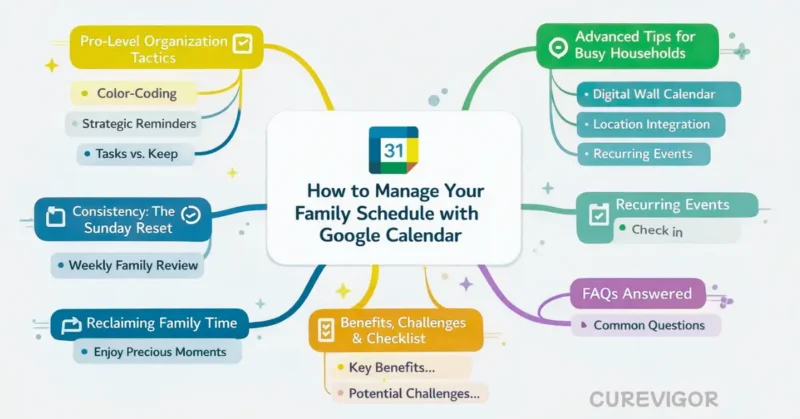
Incorporating Google Calendar into your family’s routine is a game-changer. By setting up a shared calendar, color-coding family members, and using helpful reminders, you can eliminate scheduling chaos.
Regularly reviewing and adjusting your calendar will keep everything running smoothly and give you more quality time together.
Take control of your family schedule today and enjoy the peace of mind that comes with staying organized and connected.
- Google Calendar helps families manage schedules, activities, and tasks efficiently.
- Color-coding and location integration provide easy access and quick readability.
- Use reminders and recurring events to stay on top of to-dos and avoid last-minute stress.
- Set up a “Digital Wall Calendar” for centralized family information.
- The Sunday Reset is a must for reviewing the week ahead and preventing conflicts.
So, are you ready to take control of your family’s schedule? Share your thoughts and organization tips below—I’d love to hear your thoughts and learn about your best family scheduling hacks!
Read more articles on Work-Life Balance.
You might like: