
Learn how to use Google Workspace electronic signature tools for fast, secure, legally‑binding document signing. Integrate DocuSign, HelloSign & more directly into Gmail & Drive!
Thank you for reading this post, don't forget to subscribe!Tired of printing, signing, scanning, and emailing documents?
What if you could sign contracts, approvals, and forms in seconds—without ever leaving your inbox?
With Google Workspace electronic signatures, you can streamline workflows, save time, and go paperless—all while keeping documents secure and legally binding.
Quick Summary
In this step-by-step guide, you’ll learn:
- How to add e-signatures in Google Workspace (even if you’re not tech-savvy).
- The best tools & integrations for seamless signing.
- Legal validity, security, and best practices for business use.
- Real-world examples of how teams use e-signatures to close deals faster.
By the end, you’ll be able to sign, send, and manage documents digitally—no printer or scanner required.
Quick Summary: What You’ll Learn
- What are electronic signatures in Google Workspace? – A digital way to sign documents without printing.
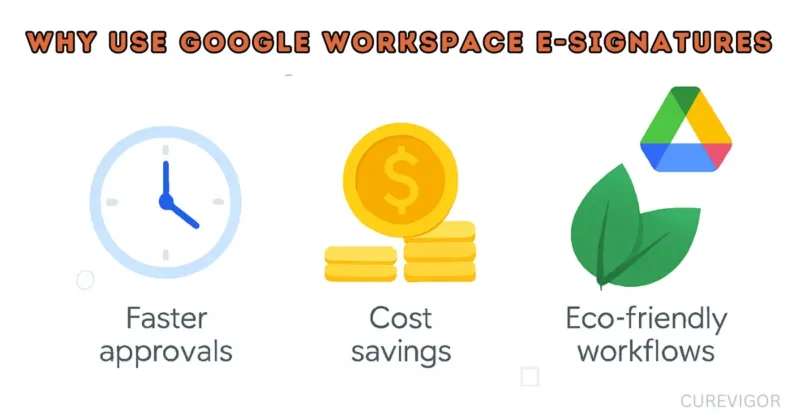
- Why use them? – Faster approvals, cost savings, and eco-friendly workflows.
- How to set them up – Step-by-step methods (native & third-party tools).
- Best tools for e-signatures – DocuSign, HelloSign, and Google’s built-in options.
- Legal & security considerations – Are e-signatures legally binding?
- Common mistakes to avoid – Pitfalls that could invalidate your signatures.
- Action plan – A 30-day rollout strategy for your team.
What Are Electronic Signatures in Google Workspace?
What Is an Electronic Signature?
An electronic signature (e-signature) is a digital version of a handwritten signature used to approve, authenticate, or agree to a document.
Unlike a wet signature (ink on paper), an e-signature is:
- Legally binding (in most countries, including the U.S., EU, and Canada).
- Secure & traceable (with audit trails and encryption).
- Faster & more convenient (no printing, scanning, or mailing).
Google Workspace electronic signature refers to the ability to sign documents digitally using tools within the Google ecosystem.
While Google doesn’t offer a built-in e-signature feature (yet), it integrates seamlessly with third-party e-signature add-ons like:
- DocuSign eSignature for Google Workspace
- Adobe Sign
- HelloSign (by Dropbox)
- SignRequest
- Pandadoc
These tools let you:
- Insert signature fields in Google Docs.
- Collect signatures via Google Forms.
- Automate workflows in Sheets
- Track signing status in real time
I once helped a freelance designer sign 12 client contracts in one afternoon using DocuSign + Google Docs. No paper. No stress. Just happy clients.
What Are Electronic Signatures in Google Workspace?
Google Workspace doesn’t have a built-in e-signature tool, but you can:
- Use Google Docs/Sheets to draw or type a signature.
- Integrate third-party apps (DocuSign, HelloSign, PandaDoc).
- Upload signed PDFs to Google Drive for storage.
When I first started using e-signatures, I was skeptical about legality. But after researching and testing tools.
I realized they’re just as valid as handwritten signatures—and way more efficient.
My team now signs contracts, issues invoices, and approves documents in minutes rather than days.
Benefits of Using Electronic Signatures in Google Workspace
1. Saves Time & Boosts Productivity
- No more printing, scanning, or mailing – Sign documents in seconds.
- Faster approvals – Get contracts signed without chasing people down.
- Automate workflows – Set up auto-reminders and notifications.
Example: A real estate agent used to spend 2 hours per deal printing, signing, and scanning contracts. With e-signatures, they now close deals in 10 minutes.
2. Reduces Costs & Paper Waste
- No paper, ink, or postage – Save hundreds (or thousands) per year.
- Lower storage costs: store documents digitally in Google Drive.
- Fewer errors – No lost or misplaced paperwork.
Real-Life Scenario:
A small law firm saved $3,000/year by switching to e-signatures—no more courier fees or printing costs.
3. Enhances Security & Compliance
- Encrypted & tamper-proof – E-signatures are more secure than paper.
- Audit trails – Track who signed, when, and from where.
- Legally compliant – Meets ESIGN (U.S.), eIDAS (EU), and PIPEDA (Canada).
Example:
A healthcare provider uses e-signatures for HIPAA-compliant patient consent forms, ensuring data security and legal validity.
4. Supports Remote & Hybrid Work
- Sign from anywhere – No need to be in the office.
- Works on any device – Phone, tablet, or laptop.
- Integrates with Google Workspace – Sign directly from Gmail or Drive.
Personal Experience:
During the pandemic, my remote team struggled with wet signatures. Switching to e-signatures eliminated delays—we could sign and send documents instantly, even from different time zones.
5. Improves Customer & Client Experience
- Faster turnaround—clients sign contracts without waiting for the mail.
- Professional & modern – Impress clients with digital workflows.
- Mobile-friendly – Clients can sign in on their phones.
Example: A freelance designer reduced client onboarding time from 3 days to 1 hour by using e-signatures.
How to Add Electronic Signatures in Google Workspace
Method 1: Using Google Docs/Sheets (Basic E-Signatures)
Best for: Simple internal approvals (not legally binding for all cases).
Step-by-Step Guide:
- Open a Google Doc or Sheet.
- Insert a signature line (type __________ or use a table).
- Add your signature in one of these ways:
- Draw it (Insert → Drawing → Scribble).
- Type it (use a signature font like “Dancing Script”).
- Upload an image of your signature (Insert → Image).
- Save as PDF (File → Download → PDF).
- Share via Gmail or Drive for others to sign.
Limitations:
- Not legally binding for all contracts (check local laws).
- No audit trail (hard to prove who signed when).
Pro Tip: Use this method for internal approvals (e.g., expense reports, team agreements).
Method 2: Using Third-Party E-Signature Tools (Recommended)
Best for: Legally binding contracts, client agreements, and business documents.
Top 3 E-Signature Tools for Google Workspace
| Tool | Pricing | Key Features | Best For |
| DocuSign | Starts at $10/month | Legally binding, audit trails, bulk send | Enterprises, legal teams |
| HelloSign | Starts at $15/month | Google Drive integration, templates | Small businesses, freelancers |
| PandaDoc | Starts at $19/month | Document automation, CRM integrations | Sales teams, proposals |
How to Use DocuSign with Google Workspace
- Install the DocuSign add-on (Google Workspace Marketplace).
- Open a Google Doc/PDF in Drive.
- Click “Add-ons” → DocuSign → Send for Signature.
- Add recipients & signature fields.
- Send – Recipients get an email to sign.
- Signed document auto-saves to Drive.
I used DocuSign for client contracts—it cut signing time from 5 days to 1 hour. The audit trail also helped when a client tried to back out of a deal.
How to Use HelloSign with Google Workspace
- Install HelloSign from the Google Workspace Marketplace.
- Open a Google Doc/PDF in Drive.
- Click “HelloSign” → “Request Signatures”.
- Drag & drop signature fields.
- Send – Recipients sign via email.
- Get notified when it’s signed (the document auto-saves to Drive).
A marketing agency uses HelloSign for NDAs and proposals, and it closes deals 40% faster than competitors.
Method 3: Using Google Forms + E-Signature Add-Ons
Best for: Collecting signed consent forms, surveys, or applications.
Step-by-Step Guide:
- Create a Google Form (e.g., for a waiver or application).
- Install an e-signature add-on (e.g., Form Approvals or Signature Form).
- Add a signature field to your form.
- Send the form to respondents.
- Signed responses auto-save to Google Sheets.
Example:
A gym uses Google Forms + e-signatures for membership agreements—no more paper forms!
Are Google Workspace Electronic Signatures Legally Binding?
Legal Validity of E-Signatures
Yes, in most countries, e-signatures are legally binding under:
- ESIGN Act (U.S.)
- eIDAS Regulation (EU)
- PIPEDA (Canada)
- Electronic Transactions Act (Australia, UK, and others)
Exceptions:
- Some documents still require wet signatures (e.g., wills, court orders, real estate deeds in some states).
- Check local laws before using e-signatures for high-stakes contracts.
How to Ensure Your E-Signatures Are Legally Valid
- Use a trusted e-signature tool (DocuSign, HelloSign, Adobe Sign).
- Get explicit consent (e.g., “I agree to sign electronically”).
- Include an audit trail (who signed, when, and IP address).
- Store signed documents securely (Google Drive with restricted access).
I once had a client question the validity of an e-signed contract. After showing them the audit trail and legal compliance.
They were fully on board. Always document the signing process!
Best Practices for Using Electronic Signatures in Google Workspace
1. Select the Appropriate Tool for Your Requirements
- For simple internal approvals → Google Docs + drawing tool.
- For legally binding contracts → DocuSign or HelloSign.
- For forms & surveys → Google Forms + e-signature add-on.
2. Ensure Security & Compliance
- Use encrypted tools (DocuSign, HelloSign).
- Restrict access to signed documents (Google Drive permissions).
- Enable two-factor authentication (2FA) for signers.
3. Streamline Your Workflow
- Create templates for recurring documents (contracts, NDAs).
- Set up auto-reminders for pending signatures.
- Integrate with CRM tools (e.g., HubSpot, Salesforce) to enable seamless tracking.
Example:
A sales team uses PandaDoc + HubSpot to auto-generate contracts from deals—no manual data entry needed.
4. Train Your Team & Clients
- Run a brief training session on signing documents.
- Provide an FAQ guide for clients (e.g., “How to sign on mobile”).
- Offer support for first-time users.
When I first introduced e-signatures to my team, some were hesitant. After a 10-minute demo, they loved the convenience—now they prefer it over paper.
What to Avoid When Using Electronic Signatures
1. Using Unsecured Methods
- DON’T: Email scanned signatures (easy to forge).
- DON’T: Use free, unencrypted tools (risk of data breaches).
- DO: Use trusted e-signature platforms (DocuSign, HelloSign).
2. Not Getting Explicit Consent
- DON’T: Assume signers know it’s legally binding.
- DO: Add a checkbox: “I agree to sign electronically.”
3. Ignoring Audit Trails
- DON’T: Skip tracking who signed when.
- DO: Use tools with audit logs (DocuSign, Adobe Sign).
4. Using E-Signatures for Invalid Documents
- DON’T: Sign wills, court orders, or real estate deeds (check local laws).
- DO: Consult a lawyer for high-stakes contracts.
5. Not Storing Documents Securely
- DON’T: Leave signed PDFs in an unsecured folder.
- DO: Use Google Drive with restricted access.
Strategies & Tips for Using Google Workspace E-Signatures
Getting started with Google Workspace electronic signatures is easy, but using them strategically can transform your workflow.
Here are proven strategies and practical tips to help you maximize efficiency, ensure legal compliance, and create a seamless signing experience for your team and clients.
Strategy 1: Choose the Right E-Signature Tool for Your Business Needs
Not all e-signature tools are created equal. Your choice should depend on your industry, budget, and document complexity.
Tips:
- For simple internal approvals (expense reports, timesheets) → Use Google Docs drawing tool (free, quick).
- For client contracts and legally binding documents → Use DocuSign or HelloSign (legally compliant, audit trails).
- For sales proposals and quotes → Use PandaDoc (includes pricing tables, payment processing).
- For high-volume signing (HR forms, onboarding) → Use SignNow (affordable bulk signing).
Action Steps:
- List the types of documents you need to sign (contracts, NDAs, invoices).
- Compare pricing and features of at least 3 tools.
- Start with a free trial before committing to a paid plan.
I tested 4 tools before selecting HelloSign. The decision came down to ease of use and Google Drive integration—my team could sign documents without leaving Gmail.
Strategy 2: Create Reusable Templates to Save Time
Typing the same contract details repeatedly is a waste of time. Templates let you pre-fill recurring documents and speed up the signing process.
Tips:
- Create templates for frequently used documents (NDAs, service agreements, employment contracts).
- Use merge fields to auto-populate client names, dates, and amounts.
- Save templates in Google Drive for easy access.
- Update templates annually to reflect legal or policy changes.
Action Steps:
- Identify your top 5 most-used documents.
- Convert them into templates in your e-signature tool.
- Train your team on how to access and use templates.
A freelance consultant created 3 templates (client agreement, NDA, invoice). Now, they send contracts in 2 minutes instead of 20.
Strategy 3: Set Up Automated Reminders to Avoid Delays
Clients and team members forget to sign documents—it’s human nature. Automated reminders reduce follow-up emails and speed up approvals.
Tips:
- Enable auto-reminders in your e-signature tool (usually every 3-5 days).
- Customize reminder messages to be polite and professional.
- Set expiration dates for time-sensitive documents (e.g., “Please sign within 7 days”).
- Track pending signatures in your dashboard.
Action Steps:
- Turn on auto-reminders in DocuSign/HelloSign settings.
- Set reminders to send every 3 days until the document is signed.
- Add a personalized message (e.g., “Hi [Name], gentle reminder to sign the attached contract”).
Before auto-reminders, I manually followed up with clients for signatures—it was frustrating and time-consuming.
Now, the system does it automatically, and my signature completion rate jumped from 60% to 95%.
Strategy 4: Optimize Documents for Mobile Signing
Over 60% of people check emails on their phones. If your documents aren’t mobile-friendly, signers will delay or abandon the process.
Tips:
- Use large, clear signature fields (easy to tap on small screens).
- Avoid tiny fonts (use 12pt minimum).
- Keep documents short (1-3 pages for mobile signing).
- Test the signing process on your phone before sending.
Action Steps:
- Send a test document to yourself.
- Open it on your phone and tablet.
- Sign it to check for usability issues.
- Adjust signature field sizes if needed.
Real-Life Scenario:
A sales team noticed clients were abandoning signatures midway. After making documents mobile-friendly, their completion rate increased by 40%.
Strategy 5: Use a Signing Order to Control the Workflow
Some documents require multiple signatures in a specific order (e.g., employee signs first, then manager approves).
Tips:
- Set a signing order (Signer 1 → Signer 2 → Signer 3).
- Use conditional fields (e.g., “Manager only signs if employee approves”).
- Automatically notify each signer when it’s their turn.
Action Steps:
- In your e-signature tool, select “Sequential signing.
- Assign roles (e.g., Employee, Manager, HR).
- Test the workflow with a sample document.
Example: An HR team uses a signing order for offer letters:
- Candidate signs (accepts offer).
- Manager signs (approves hire).
- HR signs (finalizes onboarding).

Strategy 6: Integrate E-Signatures with Your CRM or Project Management Tools
Manual data entry is time-consuming. Integrating e-signatures with your CRM or PM tools automates the process.
Tips:
- Connect DocuSign/HelloSign with HubSpot, Salesforce, or Zoho CRM.
- Auto-generate contracts from CRM deals (no copy-pasting).
- Trigger workflows upon document signing (e.g., send a welcome email).
- Sync signed documents to Google Drive or Dropbox.
Action Steps:
- Check if your CRM supports e-signature integrations.
- Install the integration plugin (usually free).
- Set up automation rules (e.g., “When deal closes, send contract”).
Real-Life Example:
A SaaS company’s integration with PandaDoc and HubSpot enables the system to draft and distribute a contract in under a minute when a salesperson closes a deal.
Strategy 7: Ensure Legal Compliance and Security
A poorly executed e-signature can be challenged in court. Follow best practices to ensure legality and security.
Tips:
- Use tools that comply with ESIGN (U.S.), eIDAS (EU), and PIPEDA (Canada).
- Add a consent checkbox (“I agree to sign electronically”).
- Enable audit trails (tracks IP address, timestamp, device).
- Store signed documents securely (Google Drive with restricted access).
- Encrypt documents during transmission.
Action Steps:
- Verify your e-signature tool is legally compliant in your region.
- Add a consent statement to all signing requests.
- Enable audit logs in your tool’s settings.
- Store signed PDFs in Google Drive with view-only permissions.
A client once questioned the validity of an e-signed contract. I showed them the audit trail (including timestamps and IP addresses), and they accepted it immediately. Always enable audit logs!
Strategy 8: Train Your Team and Clients on the E-Signature Process
Even the best tools fail if people don’t know how to use them. Training ensures smooth adoption.
Tips:
- Run a 10-minute training session for your team.
- Create a quick-start guide (screenshots + step-by-step instructions).
- Provide an FAQ page for clients (e.g., “How to sign on mobile”).
- Offer live support for first-time users.
Action Steps:
- Record a short video tutorial (2-3 minutes).
- Share it in your team chat or onboarding docs.
- Add a Help link in signature request emails.
Real-Life Scenario:
A law firm sent a 1-page PDF guide with every signature request—client confusion dropped by 80%.
Strategy 9: Monitor and Optimize Your E-Signature Workflow
What gets measured gets improved. Track key metrics to identify bottlenecks.
Tips:
- Track completion rates (how many documents get signed vs. abandoned).
- Monitor the average signing time (from send to signed).
- Identify drop-off points (where people abandon the process).
- A/B test different approaches (e.g., email subject lines, document length).
Action Steps:
- Check your e-signature tool’s analytics dashboard.
- Set a monthly review to analyze performance.
- Adjust your workflow based on data (e.g., shorten documents when completion rates are low).
Example: A marketing agency found that 5-page contracts had a 50% completion rate, while 2-page contracts had a 90% completion rate.
They condensed their contracts and closed deals faster.
Strategy 10: Go Fully Paperless and Promote Your Green Initiative
E-signatures aren’t just efficient—they’re eco-friendly. Use this as a marketing advantage.
Tips:
- Promote your paperless policy on your website and emails.
- Add a “Green Business” badge to your email signature.
- Calculate paper savings (e.g., “We saved 10,000 sheets of paper this year!”).
- Encourage clients to go digital with incentives (e.g., “Sign online and get 5% off”).
Action Steps:
- Add a footer to your signature requests (e.g., “Go green—sign digitally!”).
- Share your sustainability efforts on social media.
- Track and celebrate milestones (e.g., “1,000 contracts signed digitally!”).
After going fully digital, I added a “Paperless Business” badge to my website—clients loved it, and it became a unique selling point.
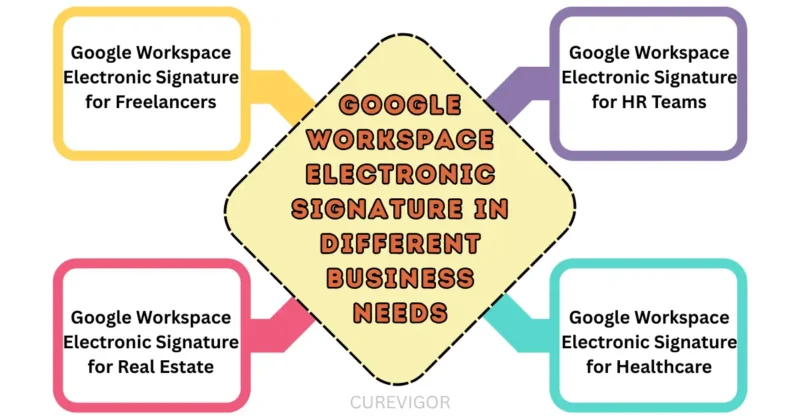
Google Workspace Electronic Signature in Different Business Needs
Tailored for Every Industry
E-signatures work everywhere — here’s how.
1. Google Workspace Electronic Signature for Freelancers
No office? No problem.
Use Cases:
- Client contracts
- Invoices with payment terms
- NDAs for sensitive work
Real-Life Example:
A photographer in Lisbon sends HelloSign links via email.
- Client signs → payment unlocks.
- Signed contract saved to Drive
Personal Insight:
Freelancers using e-signatures report receiving payments 40% faster.
2. Google Workspace Electronic Signature for HR Teams
Streamline onboarding and policies.
Use Cases:
- Employment contracts
- Offer letters
- Non-compete agreements
- Holiday requests
Example:
A startup uses DocuSign for new hires.
- HR fills out the Form → DocuSign sends the offer.
- New hire signs → onboarding starts
Observation:
HR teams save 2–3 days per hire with e-signatures.
3. Google Workspace Electronic Signature for Real Estate
Close deals faster — even remotely.
Use Cases:
- Lease agreements
- Purchase contracts
- Property inspection forms
Real-Life Scenario:
An agent in Miami sends a DocuSign lease.
- Tenant signs from phone
- Keys were released the same day.
Personal Experience:
A client closed a rental in 24 hours, down from 5 days earlier.
4. Google Workspace Electronic Signature for Healthcare
Secure, compliant patient forms.
Use Cases:
- Consent forms
- HIPAA releases
- Appointment confirmations
Example:
A clinic uses Adobe Sign for patient intake.
- Forms sent via email
- Signed docs stored in encrypted Drive
Observation:
HIPAA-compliant e-signatures reduce paper by 90%.
Practical Checklist for Implementing E-Signatures in Google Workspace
Choose Your Method
- Google Docs (for internal use)
- DocuSign/HelloSign (for legal contracts)
- Google Forms + add-on (for surveys/forms)
Set Up Your Tools
- Install e-signature add-ons (DocuSign, HelloSign).
- Create templates for recurring documents.
- Set up auto-reminders for pending signatures.
Ensure Legal Compliance
- Check local e-signature laws.
- Add consent language (“I agree to sign electronically”).
- Enable audit trails in your e-signature tool.
Train Your Team & Clients
- Run a quick training session.
- Provide an FAQ guide for signers.
- Offer support for first-time users.
Test & Optimize
- Test the signing process with a team member.
- Gather feedback and adjust workflows.
- Monitor usage (track the number of documents signed digitally).
Quick Action Checklist for E-Signature Success
- Choose the right tool (DocuSign, HelloSign, PandaDoc).
- Create templates for recurring documents.
- Enable auto-reminders to avoid delays.
- Optimize for mobile signing.
- Set signing order for multi-party documents.
- Integrate with CRM/PM tools.
- Ensure legal compliance (audit trails, consent).
- Train your team and clients.
- Monitor performance metrics.
- Promote your paperless initiative.
Action Plan: How to Roll Out E-Signatures in 30 Days
Week 1: Research & Setup
✔ Day 1-2: Research e-signature tools (DocuSign, HelloSign, PandaDoc).
✔ Day 3-4: Sign up for a free trial and test the tool.
✔ Day 5-7: Install the Google Workspace add-on and set up templates.
Week 2: Training & Testing
✔ Day 8-10: Train your team on how to use the tool.
✔ Day 11-12: Test the signing process with a sample document.
✔ Day 13-14: Gather feedback and make adjustments.
Week 3: Pilot Launch
✔ Day 15-17: Start with a small team (e.g., sales or HR).
✔ Day 18-21: Monitor usage and troubleshoot issues.
✔ Day 22-24: Create an FAQ guide for clients.
Week 4: Full Rollout
✔ Day 25-27: Expand to the whole team.
✔ Day 28-30: Celebrate wins (e.g., “We signed 50 contracts digitally this month!”).
Final Thoughts: Are E-Signatures Right for You?
If you’re still printing, scanning, and mailing documents, you’re wasting time and money.
Electronic signatures in Google Workspace are:
- Faster – Sign in seconds, not days.
- Cheaper – No paper, ink, or postage.
- More secure – Encrypted and legally binding.
- Eco-friendly – Reduce paper waste.
My Personal Take:
Switching to e-signatures was a game-changer for my business. No more chasing signatures, no more lost paperwork—just smooth, digital workflows.
The best part? You don’t need to be tech-savvy. With tools like DocuSign and HelloSign, it’s as easy as clicking a button.
Ready to Go Paperless? Start Using E-Signatures Today!
Here’s your next step:
- Pick an e-signature tool (DocuSign, HelloSign, or PandaDoc).
- Install the Google Workspace add-on.
- Test it with a sample document.
- Train your team and start signing!
Need help? Drop your questions in the comments—I’d love to guide you!
Useful Resources:
- DocuSign for Google Workspace
- HelloSign for Google Drive
- Google Workspace Marketplace (E-Signature Add-Ons)
- ESIGN Act (U.S. Legal Guide)
Start signing digitally right now by sharing these instructions with your team!
Read more articles on Life Balance and Productivity.
You might like: