
Unlock the power of Google Digital Workspace with our complete guide. Discover productivity tools, collaboration software, and cloud computing solutions to boost business efficiency securely and affordably. Start your free trial today!
Imagine running your business with tools that work seamlessly together—no more switching between apps, lost emails, or version control nightmares.
What if your team could collaborate in real time, access files from anywhere, and secure sensitive data without a hitch?
That’s the power of Google Digital Workspace.
Whether you’re a small startup, a growing remote team, or a large enterprise, Google Digital Workspace (formerly G Suite) is designed to streamline workflows, enhance communication, and boost productivity. But how do you make the most of it?
In this complete guide, we’ll break down everything you need to know—from setup and key features to best practices and real-world success stories.
By the end, you’ll have a clear roadmap to unlock the full potential of Google Digital Workspace for your business.
Quick Summary: What You’ll Learn
What is Google Digital Workspace? – A collection of cloud-based tools for collaboration and productivity.
- Key Features & Benefits – How it improves teamwork, security, and efficiency.
- How to Get Started – Step-by-step setup and best practices.
- Real-World Use Cases – How businesses (big and small) use it successfully.
- Common Mistakes to Avoid – Pitfalls that could derail your implementation.
- Action Plan – A step-by-step checklist to roll out Google Digital Workspace smoothly.
Understanding Google Digital Workspace
What is Google Digital Workspace and How Does It Work?
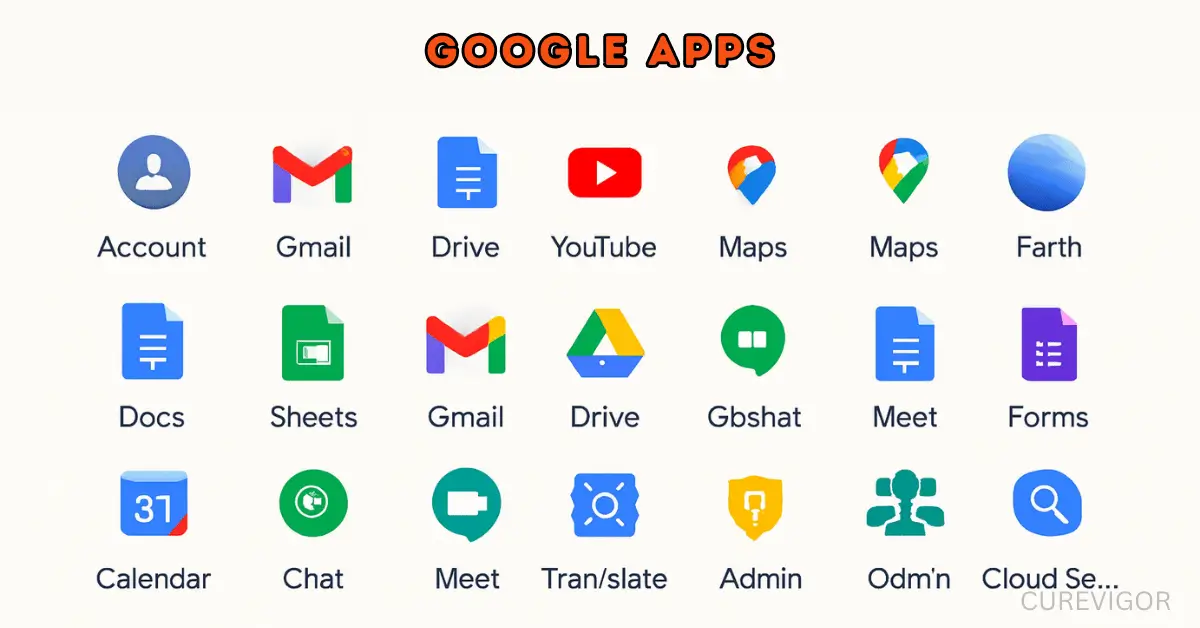
Google Digital Workspace is a cloud-based productivity suite that brings essential business tools together in one place. It includes:
- Gmail (Professional email with custom domains)
- Google Drive (Cloud storage & file sharing)
- Google Docs, Sheets, Slides (Real-time document collaboration)
- Google Meet & Chat (Video conferencing & team messaging)
- Google Calendar (Scheduling & event management)
- Google Forms (Surveys & data collection)
- Google Sites (Easy website building)
- Google Keep (Note-taking & task management)
Unlike traditional office software, Google Digital Workspace is fully cloud-based, meaning:
- No installations needed – Access from any device with an internet connection.
- Real-time collaboration – Multiple users can edit documents simultaneously.
- Automatic updates – No more manual software upgrades.
- Scalable for any business size – From solopreneurs to enterprises.
How does it work?
Think of it as a digital office where your team can:
- Communicate (via Gmail, Meet, Chat)
- Create & share (Docs, Sheets, Slides)
- Store & organize (Drive, Shared Drives)
- Manage projects (Calendar, Tasks, Keep)
When I first switched to Google Digital Workspace, the biggest game-changer was real-time collaboration.
No more emailing documents back and forth—my team could edit, comment, and finalize projects in one place. It reduced our meeting time by 30% by enabling us to work asynchronously.
Benefits of Using Google Digital Workspace
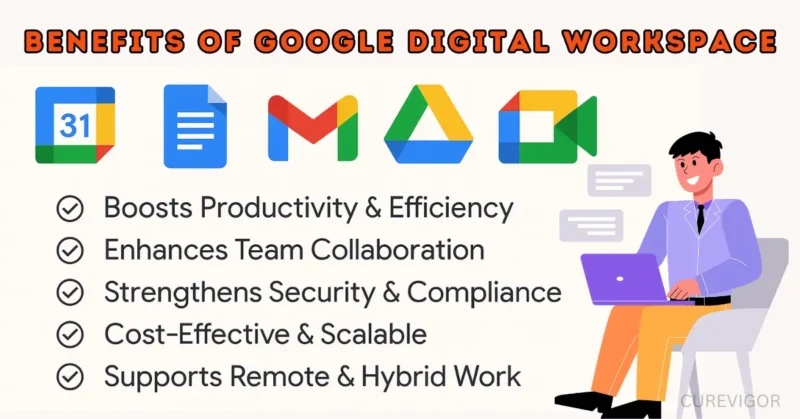
Why should your business switch to Google Digital Workspace? Here’s how it can transform your operations:
1. Boosts Productivity & Efficiency
- No more version control chaos – Everyone works on the same document in real time.
- Automated workflows – Use Google Apps Script to automate repetitive tasks.
- Mobile-friendly – Access files and tools on the go.
Example:
Marketers can use Google Docs to collaborate on campaigns, Calendar to track deadlines, and Drive to share materials.
2. Enhances Team Collaboration
- Google Meet: Organize video conferences for up to 250 people (Enterprise plan).
- Google Chat – Instant messaging with threaded conversations.
- Shared Drives – Store and manage team files in one place.
Real-Life Scenario:
A remote design team uses Google Meet for daily stand-ups, Google Drive for file sharing, and Google Docs for feedback—eliminating the need for multiple tools.
3. Strengthens Security & Compliance
- Enterprise-grade security – Data encryption, two-factor authentication (2FA), and advanced phishing protection.
- Admin controls: manage user access, devices, and security policies.
- Compliance certifications – Meets GDPR, HIPAA, and SOC 2 standards.
Example:
A healthcare provider uses Google Digital Workspace to store patient records securely in compliance with HIPAA.
4. Cost-Effective & Scalable
- No upfront hardware costs – Everything is cloud-based.
- Pay-as-you-go pricing: Plans start at $ 6 per user per month (Business Starter).
- Easy to scale – Add or remove users as your business grows.
Comparison:
Google Digital Workspace offers comparable (or even greater) features at a lower cost than traditional office software, such as Microsoft 365, which can cost $12–$20 per user per month.
5. Supports Remote & Hybrid Work
- Access files from anywhere – No need for VPNs or local storage.
- Offline mode – Work without internet and sync later.
- Integrations with 3rd-party apps – Slack, Trello, Zoom, and more.
During the pandemic, my team fully transitioned to remote work using Google Digital Workspace. We didn’t miss a beat—meetings, file sharing, and project tracking all happened seamlessly.
Key Features of Google Digital Workspace
Collaboration Tools in Google Digital Workspace
Let’s dive into the core apps—and how real people use them every day.
1. Collaboration Tools That Bring Teams Together
These tools make teamwork feel natural — even across time zones.
Google Meet
- Organize HD video conferences for up to 250 people.
- Record meetings (saved to Drive).
- Live captions, screen sharing, breakout rooms.
A nonprofit in Nairobi used Google Meet for weekly global team check-ins. They saved $12,000/year on travel.
Google Chat
- Replace Slack or email threads.
- Create project spaces (e.g., “Q3 Launch”).
- Share files, @mention colleagues, and integrate with Calendar.
In a startup I mentored, switching from WhatsApp groups to Google Chat reduced message clutter by 70%.
Google Docs, Sheets, Slides
- Docs: Write reports, proposals, blogs.
- Sheets: Track budgets, sales, and inventory.
- Slides: Build presentations with team input.
A teacher in Delhi created a shared Google Sheet for class attendance. Parents could view updates (with permission). No paper. No delays.
2. Security & Compliance You Can Trust
Google Digital Workspace isn’t just innovative — it’s safe.
How It Protects Your Business:
- Zero Trust Model – Verifies every login.
- Data Loss Prevention (DLP) – Stops sensitive info from leaking.
- Device Management – Wipe lost phones or restrict apps.
- Admin Controls – Set passwords, monitor activity, approve apps.
A healthcare clinic in Toronto used Google Digital Workspace for patient scheduling. By complying with HIPAA and using encrypted email, they avoided fines and built trust.
Security & Compliance in Google Digital Workspace
Security is a top priority for businesses. Here’s how Google Digital Workspace keeps your data safe:
Data Encryption & Protection
- Encryption in transit & at rest – Files are secure during transfer and storage.
- Advanced phishing protection – AI detects and blocks suspicious emails.
- Data loss prevention (DLP) – Prevents accidental sharing of sensitive info.
User & Access Management
- Admin console – Control user permissions, devices, and security settings.
- An additional degree of protection for logins is two-factor authentication (2FA).
- Device management – Remotely wipe data from lost devices.
Compliance & Certifications
- GDPR, HIPAA, SOC 2 – Meets global compliance standards.
- Vault for eDiscovery – Retain, search, and export data for legal holds.
Example:
A financial services firm uses Google Vault to archive emails and documents for audit compliance.
Implementing Google Digital Workspace

Getting Started with Google Digital Workspace
Are you prepared to change? Here is how to set up Google Digital Workspace step-by-step:
Step 1: Choose the Right Plan
| Plan | Price (per user/month) | Storage | Features |
| Business Starter | $6 | 30GB | Gmail, Meet (100 participants), Drive |
| Business Standard | $12 | 2TB | Meet (150 participants), Shared Drives, Vault |
| Business Plus | $18 | 5TB | Meet (250 participants), Advanced security |
| Enterprise | Custom | Unlimited | Advanced DLP, AI features |
Recommendation:
- Small teams → Business Starter
- Growing businesses → Business Standard
- Enterprises → Business Plus or Enterprise
Step 2: Set Up Your Domain
- Buy a domain (if you don’t have one) via Google Domains or a registrar like GoDaddy.
- Verify domain ownership in the Google Admin Console.
- Set up MX records to route emails to Gmail.
Pro Tip:
Use Google’s domain setup tool for a hassle-free process.
Step 3: Add Users & Teams
- Go to Admin Console → Directory → Users.
- Add users manually or upload a CSV file.
- Assign licenses based on their role.
Example:
- Marketing team → Business Standard (needs Shared Drives)
- Sales team → Business Starter (basic email & Meet)
Step 4: Configure Security Settings
- Enable 2FA (Admin Console → Security → 2-Step Verification).
- Set up password policies (minimum length, expiration).
- Configure device management (for mobile access).
Step 5: Migrate Data (If Switching from Another Platform)
- Use Google’s migration tools to transfer emails, contacts, and files.
- For Outlook users, use Google Workspace Migration for Microsoft Outlook (GWMMO).
- For files, upload to Google Drive or use Google Drive for Desktop.
Personal Experience:
When I migrated from Microsoft 365 to Google Digital Workspace, the email migration tool worked flawlessly—no lost emails or contacts.
Step 6: Train Your Team
- Google’s training resources (Google Workspace Learning Center).
- Live webinars & tutorials.
- Assign a “Google Workspace Champion” to help onboard new users.
Best Practice:
Run a 30-minute training session covering:
- Gmail & Calendar basics
- Google Drive & Shared Drives
Google Meet & Chat
Best Practices for Google Digital Workspace Deployment
1. Start with a Pilot Group
- Test with a small team before rolling out company-wide.
- Gather feedback and adjust settings.
2. Use Shared Drives for Team Files
- Create department-specific drives (e.g., Marketing, HR).
- Set permissions (view, edit, comment).
3. Automate Repetitive Tasks
- Google Apps Script – Automate workflows (e.g., auto-send reports).
- Google Forms + Sheets – Collect and analyze data automatically.
Example:
A sales team uses Google Forms to collect leads, which auto-populate into Google Sheets for follow-ups.
4. Encourage Adoption with Gamification
- Reward early adopters (e.g., “Google Workspace Champion” badge).
- Create a fun challenge (e.g., “Most collaborative team of the month”).
5. Monitor Usage & Optimize
- Admin Console reports: track login activity and storage usage.
- User feedback surveys – Identify pain points.
Google Digital Workspace for Different Business Needs
Google Digital Workspace for Remote Teams
Remote work is here to stay. Here’s how Google Digital Workspace supports distributed teams:
1. Seamless Communication
- Google Meet – Host virtual meetings with screen sharing.
- Google Chat – Quick messages, file sharing, and threaded conversations.
Example:
A remote customer support team uses Google Chat for quick queries and Google Meet for weekly training.
2. Centralized File Management
- Shared Drives – Store and access files from anywhere.
- Offline mode – Work without internet and sync later.
Pro Tip:
Use Google Drive for Desktop to access files as if they were local folders.
3. Time Zone-Friendly Scheduling
- Google Calendar – Set working hours and avoid scheduling conflicts.
- World Clock – Check time zones before setting meetings.
Real-Life Scenario:
A global team uses Google Calendar’s “Find a Time” feature to schedule meetings across time zones.
Google Digital Workspace for Enterprise Businesses
Large businesses need scalability, security, and advanced features. Here’s how Google Digital Workspace delivers:
1. Advanced Security & Compliance
- Data Loss Prevention (DLP) – Prevents accidental sharing of sensitive data.
- Vault for eDiscovery – Retain and search emails for legal compliance.
- Context-Aware Access – Restrict access based on user location or device.
Example:
A financial institution uses DLP to block the sharing of credit card numbers via email.
2. AI & Automation Features
- Smart Compose in Gmail – AI suggests email responses.
- Google Meet’s live captions: real–time transcription for accessibility.
- AppSheet – No-code app development for custom workflows.
Pro Tip:
Use Google’s AI-powered search to find files, emails, and contacts instantly.
3. Enterprise-Grade Admin Controls
- Granular user permissions – Control access at the team or department level.
- Device management – Remotely wipe data from lost devices.
- Third-party app integrations – Connect with Salesforce, Slack, etc.
Example:
A healthcare provider uses Google Workspace’s HIPAA-compliant features to secure patient data.
What to Avoid When Using Google Digital Workspace
Even the best tools can backfire if misused. Here are common mistakes to avoid:
1. Not Setting Up Proper Permissions
- Problem: Employees accidentally share sensitive files.
- Solution: Use Shared Drives with restricted access.
2. Ignoring Security Best Practices
- Problem: Weak passwords or no 2FA.
- Solution: Enforce 2FA and strong password policies.
3. Overcomplicating Workflows
- Problem: Too many tools leading to confusion.
- Solution: Stick to core apps (Gmail, Drive, Meet, Docs).
4. Not Training Employees
- Problem: Low adoption due to a lack of knowledge.
- Solution: Run training sessions and provide resources.
5. Not Monitoring Usage
- Problem: Unused licenses or storage waste.
- Solution: Regularly review Admin Console reports.
Practical Checklist for Google Digital Workspace Implementation
Pre-Implementation
- Choose the right Google Digital Workspace plan.
- Purchase and verify your domain.
- Set up an admin account and security policies.
Setup & Migration
- Add users and assign licenses.
- Migrate emails, contacts, and files (if switching from another platform).
- Configure Shared Drives for teams.
Security & Compliance
- Enable two-factor authentication (2FA).
- Set up password policies.
- Configure data loss prevention (DLP) (Enterprise plan).
Training & Adoption
- Run a pilot test with a small team.
- Conduct training sessions (Gmail, Drive, Meet, Docs).
- Assign a Google Workspace Champion for support.
Ongoing Optimization
- Monitor usage reports in Admin Console.
- Gather user feedback and adjust settings.
- Automate repetitive tasks with Apps Script.
Action Plan: How to Roll Out Google Digital Workspace in 30 Days
Week 1: Plan & Prepare
- Audit current tools (email, storage, chat)
- Choose the Google Digital Workspace plan.
- Verify the domain, add admin.
- Create a folder structure in Drive.
Week 2: Setup & Train
- Add users, assign roles.
- Migrate key data
- Train team on Docs, Sheets, Calendar
- Host “Workspace 101” webinar
Week 3: Roll Out & Collaborate
- Launch Chat spaces
- Schedule the first team meeting in Meet.
- Share templates (e.g., meeting notes)
- Collect feedback via Google Form
Week 4: Optimize & Scale
- Enable 2FA, review security
- Automate 1 task (e.g., email reminders)
- Add more teams
- Celebrate wins!
Motivational Note:
You don’t need to do it all at once. Progress > perfection.
FAQs
Q. Is Google Workspace still free?
No, Google Workspace is not free for businesses. However, Google offers a 14-day free trial for new users. After that, you must choose a paid plan (starting at $ 6 per user per month).
For personal use, Gmail, Google Drive, and Docs remain free with limited storage (15GB shared across Gmail, Drive, and Photos).
I used the free version of Gmail for years before switching to Google Workspace for my business.
The paid version unlocks custom domains, more storage, and advanced security—worth it for professional use.
Q. What is the cost of Google Workspace in Pakistan?
Google Workspace prices in Pakistan are comparable to global prices, though they may vary slightly due to currency fluctuations. The approximate price in PKR (as of 2024) is as follows:
| Business Starter | $6/user/month | ~PKR 1,700 | 30GB storage, custom email, Meet (100 participants) |
| Business Standard | $12/user/month | ~PKR 3,400 | 2TB storage, Shared Drives, Vault |
| Business Plus | $18/user/month | ~PKR 5,100 | 5TB storage, advanced security, Meet (250 participants) |
| Enterprise | Custom | Custom | Unlimited storage, AI features, advanced DLP |
- Prices may fluctuate due to exchange rates.
- Some local resellers offer discounts—check Google’s official partner directory.
Pro Tip:
If you’re a small business in Pakistan, start with Business Starter and upgrade as you grow.
Q. What is the use of Google Workspace?
Google Workspace is a cloud-based productivity suite intended for teams, companies, and educational institutions. Among its primary applications are:
- Professional Email (Gmail with custom domains like yourname@yourbusiness.com)
- Real-Time Collaboration (Google Docs, Sheets, Slides—multiple users can edit simultaneously)
- Cloud Storage & File Sharing (Google Drive, Shared Drives)
- Video Conferencing & Chat (Google Meet, Google Chat)
- Scheduling & Task Management (Google Calendar, Tasks, Keep)
- Security & Compliance (2FA, DLP, Vault for legal holds)
Real-Life Example:
A remote marketing team uses Google Workspace to:
- Draft campaigns in Google Docs (with real-time feedback).
- Schedule meetings in Google Calendar.
- Host client calls in Google Meet.
- Store assets in Shared Drives.
Q. What is Google Workspace called now?
Google Workspace is the current name of the product. It was previously known as:
- G Suite (2016–2020)
- Google Apps for Work (2006–2016)
Why the name change?
Google rebranded to Workspace in 2020 to reflect its focus on collaboration (not just individual apps).
The core tools (Gmail, Drive, Docs, etc.) remain the same, but with better integrations and AI features.
Fun Fact:
Some people still call it “G Suite” out of habit—just like how “Kleenex” is used for tissues!
Q. What’s the difference between Google Workspace and Gmail?
Gmail is just an email service, while Google Workspace is a full suite of business tools.
Workspace includes Gmail, Drive, Docs, Sheets, Meet, Chat, and Calendar. It offers custom domains, admin controls, and enhanced security.
Workspace provides 24/7 support and compliance certifications. Gmail.com is free; Workspace requires a subscription.
Workspace enables team collaboration and file management. Gmail alone lacks these enterprise features.
Key Difference:
- Gmail = Personal email (for individuals).
- Google Workspace = Business suite (professional email + collaboration tools).
Q. Can my boss see my emails in Google Workspace?
Yes, your boss (admin) can access your emails if they have admin privileges. Admins can search for, export, or audit emails in the Admin Console. However, they usually don’t monitor inboxes daily.
Privacy depends on company policy and local laws. Google Workspace allows data retention and e-discovery for compliance.
llUsers should assume their work accounts have limited privacy. Personal Gmail accounts are private; Workspace is not.
Final Thoughts: Is Google Digital Workspace Right for Your Business?
If you’re looking for a cost-effective, secure, and collaborative solution, Google Digital Workspace is a game-changer.
- For small businesses, it’s affordable, easy to set up, and scalable.
- For remote teams, it supports seamless collaboration from anywhere.
- For enterprises, it offers advanced security, AI features, and compliance.
Google Digital Workspace is more than a toolset—it’s your digital backbone.
It connects people, simplifies workflows, and scales with your business.
Whether you’re:
- A solopreneur managing clients
- A startup building fast
- An enterprise securing data
Google Digital Workspace has your back.
My Personal Take:
Switching to Google Workspace was one of the best decisions I made for my business. It eliminated silos, improved communication, and saved time—all while keeping data secure.
The key to success?
- Start small (pilot test with a team).
- Train your employees (adoption is everything).
- Optimize continuously (use automation and feedback).
One last thought: You don’t need to be perfect. Just start. Share one Doc. Host one Meet. Organize one folder.
Progress compounds.
And soon, you’ll wonder how you ever worked without it.
Ready to Transform Your Business with Google Digital Workspace?
Here’s your next step:
- Sign up for a free trial (14 days) at Google Workspace.
- Follow the checklist to set up your account.
- Train your team and encourage adoption.
Remember: The best tools are only as good as how you use them. With Google Digital Workspace, you’re not just getting software—you’re getting a more innovative way to work.
Have questions? Drop them in the comments—I’d love to help!
Related Resources:
Start using Google Digital Workspace right now by sharing this information with your team!
Conclusion: Your Journey Starts Now
Google Digital Workspace is your digital foundation, not just a collection of products.
It facilitates communication, streamlines processes, and grows with your company.
Whether you’re
- Managing clients as a sole proprietor
- A startup expanding quickly
- An organization protecting dataGoogle Digital Workspace is here to support you.
- Finally, remember that you don’t have to be flawless.
- Just get started.
- Distribute a single document.
- Organize a single meet.
- Put one folder in order.
Compounds of progress.
- You’ll soon question how you managed to function without it.
- You’ve got this.
- Build something amazing — one Google Digital Workspace tool at a time.
- Start Your Free 14-Day Trial of Google Digital Workspace Today!
Read more articles on Life Balance and Productivity.
You might like: